


Screen Recorder - XRecorder
4.7117.34K Reviews
App Specs
- Version
- 2.5.2.1
- Updated On
- License
- Free
- Downloads
- 100,000,000+
- Developer
- InShot Inc.
- Categories
- Video Players & Editors
- Platform
- Android, iOS
Screenshots
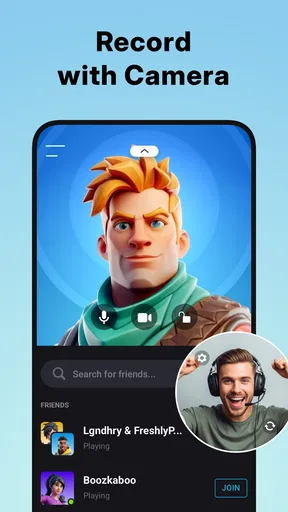
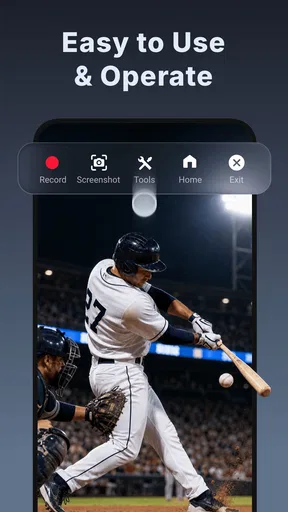
 Analysis by AppCompare
When I need to turn something happening on my phone into a clip someone else can actually use, a screen recorder is more than a record button. I want to capture the important moment, keep the explanation clear, and share a result without a long detour through other tools. Screen Recorder - XRecorder is built around that practical job: recording what is on an Android screen, including games, and giving me a way to make basic edits before I pass the video along.
That focus makes it useful for more than gaming highlights. I can see it fitting a quick app walkthrough, a short lesson, a bug report, or a demonstration for a family member who is struggling to find a setting. The appeal is the relatively direct path from showing something on screen to producing a shareable video. It is a free app from InShot Inc. in the video player and editing space, though optional in-app purchases range from $0.99 to $49.99 per item.
A practical starting point for screen-based ideas
For a creator, the first decision is often not which editor to use but whether a screen recording is the right format at all. XRecorder is most useful when the content itself is already on the phone: a game session, an app workflow, or a visual sequence that is hard to explain in words. Rather than filming the display with another device, I can capture the screen directly and focus the clip on what I want to teach or show.
A realistic everyday use would be recording a short guide for a relative: open a settings page, demonstrate the steps, pause if needed, and send the finished clip. The same approach works for a student documenting how to navigate a learning app or a player saving a moment worth sharing. I would plan the sequence before recording, because a clear order of actions matters more than adding effects afterward.
It is also worth deciding whether narration will help. The app supports microphone audio, so a spoken explanation can make a tutorial easier to follow than a silent sequence. For a game clip, narration may be distracting; for troubleshooting, it can explain why each tap matters. I would make a brief test recording first, especially if the sound is central, then check that the screen activity and commentary are both understandable before capturing a longer session.
From capture to a clip you can share
I judge a screen recorder by what happens after I press stop: can I turn a messy stretch of screen activity into something another person can follow? This section looks at how XRecorder’s capture controls and simple editing can help bridge that gap, and where a little planning still matters. I’ll also consider how to choose between a saved clip and a live broadcast when the audience and purpose differ.
Keeping the recording process manageable
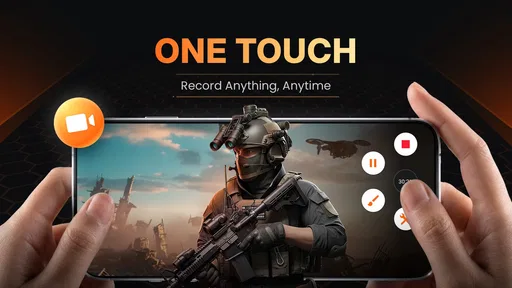
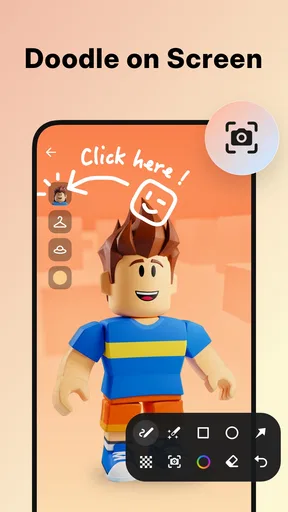
The floating control panel is useful because it lets me start, pause, and stop without having to navigate away from the screen I am trying to capture. That matters in a tutorial where opening the recorder again could interrupt the flow, and in a game where a missed moment cannot always be recreated. The screenshot option is another small but practical tool: while recording a walkthrough, I can keep a still image of an important screen for a separate reference or post.
Worth Reading Before You Choose

Flipboard Shows What News Apps Must Do Beyond the Feed

Switching to Android Auto Means Rethinking Your Driving Routine

Google Calendar Makes a Crowded Week Easier to Manage

Ludo King Makes the Most of the Minutes Between Plans

Baby Panda World Brings Quick Play to Modern Phones, but Its Game Library Feels Busy

ESPN’s Live Game View Makes Following Close Games Easier
One non-obvious workflow benefit is the ability to pause between sections rather than treating the whole recording as one uninterrupted performance. If I am making a guide, I can stop at a natural break, gather my thoughts, and continue when ready. That can reduce dead time, though I would still review the result afterward to make sure the transitions do not feel abrupt. A little planning helps: decide which screens to show, keep the device notifications and unrelated material out of the demonstration where possible, and avoid rushing through taps the viewer needs to see.
Recording a game calls for a different kind of preparation. A short test run lets me check whether the action remains smooth enough to watch and whether the audio mix suits the clip. Screen capture places demands on the device while the game is already running, so I would not assume every title or phone will behave identically. If performance is more important than preserving a spontaneous session, lowering the recording quality or capturing a shorter segment may be a sensible trade-off when those options are available in the app.
Editing with a light touch
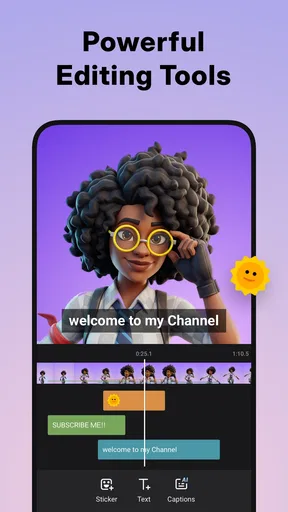
The built-in editor gives me a way to trim and cut a capture before sharing it. That is useful for removing the wait at the beginning, an accidental pause, or the portion after the demonstration is over. For many practical clips, those simple edits are enough. A concise recording is easier to follow and less awkward to send than a long file containing every false start.
I would treat this editor as a finishing step, not a replacement for a full video-editing setup. If a project needs detailed titles, layered visuals, elaborate transitions, or precise audio mixing, a dedicated editor is likely a better fit. The advantage here is convenience: I can make a basic cleanup without moving the recording into another app. The trade-off is that a simple editing workflow may feel limiting once a clip becomes a polished lesson or a more ambitious social video.
There is also a useful distinction between editing for clarity and editing for style. For an instructional recording, I would prioritize showing each action long enough to understand and cutting only genuine downtime. For a game highlight, I would focus on the strongest moment and trim the lead-in if it does not add context. In both cases, watching the final clip once before sharing is worthwhile; it catches confusing pauses and helps confirm that the story still makes sense after trimming.
Sharing, audience, and alternatives
XRecorder can broadcast a screen to YouTube and Facebook, which may suit someone who wants to show activity live rather than publish an edited clip later. That is a different workflow from recording and polishing: a live audience sees events as they happen, while a saved video gives me a chance to review and cut the material first. I would choose based on the purpose. A spontaneous game session may work well live; a step-by-step tutorial usually benefits from a quick review before it reaches viewers.
Compared with a phone’s built-in screen recorder, a separate app can be attractive when I want recording controls and a basic editor gathered around the same task. Built-in tools may be the simpler choice if I only need an occasional raw capture and prefer not to install another app. Compared with more advanced creator software, XRecorder is better suited to quick capture and straightforward trimming than to a full production pipeline. The right choice depends less on which tool has the longest feature list and more on whether I need a fast clip or detailed control over the finished video.
It is a particularly good fit for people who regularly explain what is happening on their screens, share game moments, or need a quick visual record of a process. Someone who rarely records may be perfectly well served by the recorder already on their device. A creator who needs extensive post-production, a highly controlled presentation, or a desktop-based workflow should look at a more specialized option instead. The app’s Everyone content rating makes its intended audience broad, but that does not mean every recording is appropriate to share; I would still check for private messages, account details, or other personal information visible on screen.
What to expect before relying on it
The app is free to download, but it also offers in-app purchases, so I would check the purchase details in the app before choosing any paid extras. Its current version is 2.4.7.1, and it requires Android 8.0 or later. It has a 4.7 average from around 7.5 million ratings, alongside roughly 116,000 written reviews, and has passed 100 million installs. Those figures suggest broad use, but they do not guarantee the same recording experience on every device or in every app.
Compatibility and the kind of audio a person expects are natural things to check before making XRecorder part of a regular workflow. If a recording is important, I would test the exact activity first rather than discovering a limitation during a long session. I would also check the saved clip itself, not just the live screen: confirm that the beginning is present, the ending is useful, and any narration can be heard clearly. That small review step is especially helpful before sending a tutorial to someone who will rely on it.
For creators, a useful handoff is not simply a file that exists; it is a clip that makes sense to the next person. A short filename or a sentence explaining what the viewer should notice can make a screen capture easier to revisit, even if the editing remains minimal. When the recording is meant for public sharing, I would also watch for private information that appeared during capture and trim the relevant portion if possible. XRecorder helps with capture and basic cleanup, but good judgment about what to show remains part of the work.
My take on its role in a creator’s toolkit
First things first, let’s talk about what makes Screen Recorder - XRecorder a must-have app. It’s not just your average screen recording app; it packs a punch with its range of features. You can record smooth and clear screen videos, and the best part? No watermark! That’s right, you can keep your recordings crisp and professional without any pesky logos.
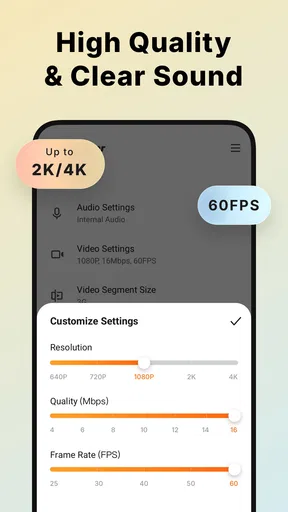
The app also supports high-quality resolutions, including 1080p, 12Mbps, and 60FPS. For those who love customization, you can tweak the settings to get the perfect quality for your needs. Oh, and did I mention it works without rooting your device? It’s a hassle-free experience all the way!
Ease of Use
One of the things I absolutely love about XRecorder is how user-friendly it is. From the moment you open the app, everything is laid out intuitively. The controls are straightforward, so even if you’re a newbie, you’ll find it easy to navigate.
There’s a floating control panel that allows you to start, pause, and stop your recordings with ease. It’s like having a mini control room at your fingertips. Plus, you can also capture screenshots while recording, which is a neat little feature if you ask me!
Additional Perks
Beyond the basics, XRecorder offers some extra goodies that are worth mentioning. You have the option to add audio from your mic, which is perfect for creating tutorials or commentary videos. If you’re into live streaming, you can broadcast your screen to platforms like YouTube and Facebook directly through the app.
And for all the editing buffs out there, XRecorder comes with a built-in video editor. You can trim and cut your videos to perfection before sharing them with the world.
My Final Thoughts
In a world brimming with screen recording apps, XRecorder manages to stand out with its robust set of features and ease of use. It’s perfect for gamers, educators, and anyone who needs to capture their screen effortlessly.
If you’ve been searching for a reliable app that offers quality and functionality without the fluff, XRecorder might just be your new best friend. Give it a try and see how it transforms your screen recording game!
Pros
- High-quality video recordings.
- No watermark on recordings.
- User-friendly interface.
- Supports external audio recording.
- Offers video editing tools.
Cons
- Contains ads in the free version.
- Limited features without purchase.
- Consumes significant storage.
- Requires Android 5.0+ to run.
- Lacks live streaming capabilities.
FAQs for Screen Recorder - XRecorder
How do I start recording my screen using XRecorder?
To start recording with XRecorder, simply open the app and tap the record button. You can customize the recording settings such as resolution, frame rate, and orientation before starting. Once you're ready, press 'Start', and XRecorder will begin capturing your screen activities. You can stop recording by tapping the stop button in the notification panel.
Does XRecorder support audio recording during screen capture?
Yes, XRecorder supports audio recording. You can record both internal audio and microphone audio. To enable this feature, go to the app's settings and make sure the audio source is selected according to your preference. This is particularly useful for creating tutorials or gameplay videos with commentary.
Is XRecorder free to use, and are there any in-app purchases?
XRecorder is free to download and offers many features at no cost. However, it also provides a premium version that unlocks additional features such as removing watermarks, access to high-quality recording settings, and an ad-free experience. The in-app purchases are optional but enhance the app's functionality.
What devices are compatible with XRecorder?
XRecorder is compatible with most Android devices running version 5.0 (Lollipop) and above. The app is designed to work smoothly across a range of smartphones and tablets. However, some features might be restricted based on your device's hardware capabilities, so it's advisable to check the app's requirements before downloading.
How can I edit my recorded videos in XRecorder?
After recording, XRecorder provides basic editing tools like trimming, adding music, and applying filters to enhance your videos. You can access these tools by selecting the video from the gallery within the app. For more advanced editing features, you may need to use an external video editing app.


